03 July 2019

Maneira halo pajina portrait no landscape tuir malu iha dokumentu ida


     Maneira halo pajina portrait no landscape tuir malu iha dokumentu ida nia laran - 

Halo dukumentu ruma microsoft word iha orientasaun surat-tahan iha oin rua; ida portrait no ida seluk ladscape. Ezemplu, ita halo dukumentu rua ida ho modelu landscape no ida seluk portrait ne'ebe file refere ita ketik iha dokumentu word ida nia laran.
     Afinal iha microsoft word ita muda surat-tahan ba landscape automatika pajina sira tuir malu iha okos sai hotu landscape no bainhira ita muda kertas ba portrait mos hanesan pajina iha okos automatika sai hotu portrait.
     Entaun agora sai duvidas mai ita, oinsa ita bele muda surat-tahan ho modelu landscape no portrait iha dokumentu ida nia laran??? Hatan Bele muda. Ho fitur ne'ebe mak iha microsoft word ita bele muda pajina rua tuir malu ho landscape no portrait, atu klaru liu tan akompana maneira tuir mai:

     Maneira halo pajina portrait no landscape tuir malu iha dokumentu ida nia laran, maka :

1. Ezemplu simples; belun bele loke microsoft word iha belun ninia komputador, no halo pajina rua ho default surat-tahan word ninia pozisaun portrait/hamrik los, hanesan imajen iha kraik ne'e.


2. Tuir mai belun tau kurso iha pajina ida ne'ebe mak atu halo sai landscape (ezemplu; admin halo landscape ba pajina 2), depois klike iha menu Layout ka Page Layout > depois klike Breaks > tuir mai klike Next Page. hanesan imajen iha kraik ne'e.


3. Tuir tan mai tau kursor ba pajina 2 (pajina ne'ebe mak atu sai landscape) depois klike Layout/Page Layout > Orientation > hili Landscape.


4. Bainhira maneira sira iha leten hotu ona mak sei hatudu resultadu hanesan imajen iha kraik ne'e.


Esplikasaun kona-ba halo pajina rua tuir malu ho surat-tahan ninia pozisaun portrait no landscape mak to'o iha ne'e. Karik iha liafaun balun ne'ebe mak seidauk klaru bele fo sujestaun, ideias ne'ebe mak konstrutivu favor rai hela iha kolum komentariu nian ho objetivu atu bele hadi'a di'ak liu tan Biotek-fmf iha futuru. 
 Obrigadu barak 
😎


Maneira atu hatene espasu/fraze belit malu iha ms. word


       Halloo belun .... sai ona vitima ba problema espasu ka fraze liafuan iha iha Ms. word ne'ebe mak belit malu, tamba problema refere impede de'it belun sira nia serbisu halo dokumentu ruma. Karik ita atu hatur fila fali espasu sira ho manual kleur demais no gasta tempu de'it.
    Problema ida hanesan ne'e baibain akontese iha Ms. word 2010 ka word 2013 no belun sira rai ho formatu hanesan Ms. word 2010 ka word 2013, no depois belun loke fila fali dokumentu refere iha rental ka komputador/laptop seluk ne'ebe mak sei uza Ms. word 2007 mak automatika dokumentu refere espasu halai arbiru no fraze liafuan sira belit malu, hanesan imajen iha kraik ne'e;

testu liafuan fraze belit malu iha word
     Hanesan imajen iha leten ne'e fraze ka liafuan sira belit malu iha word ema  lee la komprende. Agora oinsa atu resolve problema refere??? Maka halo tuir maneira tuir mai :

    Maneira resolve espasu/fraze/liafuan belit malu iha ms. word mak :

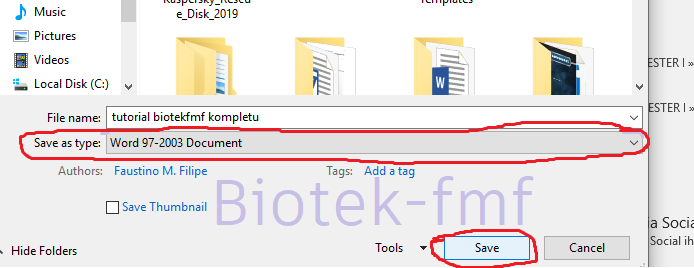
1. Karik belun ketik dokumentu ruma utiliza microsoft office word 2010 ka 2013, ou word ne'ebe mak versaun foun atu espasu no liafaun sira labele belit malu bainhira belun loke dokumentu refere iha rental ka komputador seluk maka belun rai /Save dokumentu refere ho formatu tipu word 97-2003, ho maneira mak hanesan tuir mai ne'e :

 a). Loke belun ninia dokumentu ne'ebe mak ketik ona ne'e, depois klike iha File > tuir mai Save as > iha Save as type belun hili word 97-2003 Document > depois klike Save.


b). Se belun halo tuir maneira iha leten Save as Type word 97-2003 Document maka dokumentu refere belun loke fali iha komputador saida de'it no microsoft office word ho versaun saida de'it dokumentu refere espasu nafatin no liafuan/fraze sira la belit malu

Ida ne'e mak maneira oinsa atu hatene fraze/liafuan ne'ebe mak belit malu iha ms. word. Ikus liu Obrigadu barak. e Bom susesu😎


02 July 2019

Oinsa tau password ba dokumentu iha word


Maneira simples no fasil atu fo password ba dokumentu word

     Funsaun husi halo password ba dokumentu word hanesan seguransa ka protesaun. Ezemplu, belun sira halo dukumentu ne'ebe mak privadu no segredu tebes, maka preseiza halo password atu nune'e ema seluk la bele loke dokumentu refere. 
     Atu halo password ba dukumentu iha word ho maneira simples no fasil liu, tamba Microsoft office iha ninia fitur ne'ebe mak atu halo password ka liafuan segredu. No liu husi tutorial ida ne'e ha'u hakarak fahe kona-ba oinsa tau password ba dokumentu iha word.

     Maneira atu halo password ba dokumentu iha word mak hanesan tuir mai:

1. Ita boot sira loke dokumentu word ne'ebe mak atu tau password 

2. Tuir mai hili menu File > klik iha Info > Protect Document > Encrypt with password.


3. Depois, tuir mai fo password > depois ketik fila fali password refere iha confirm password


4. Tuir mai klik Ok. no Save dokumentu refere.

     To'o iha ne'e belun sira susesu ona halo password ba dokumentu iha word. No labele haluha password refere, tamba kuandu haluha ona susar atu loke fali dokumentu refere iha tempu tuir mai.

     Maneira iha leten ne'e, oinsa tau password ba dokumentu iha microsoft office word 2016, maibe ms. office word 2010 no 2007, kuaze maneira atu hanesan de'it. No maneira ida ne'e mos ita boot bele halo ba dokumentu iha power point no excel.

No ikus liu Obrigadu barak e bom susesu ba ita.

Butaun Shortcut iha Ms. word ne'ebe tenke estuda no hatene


     Ms. word hanesan aplikasaun pengolah husi liafuan microsoft office ne'ebe utiliza barak liu. Uza ba privadu, instituisaun estadu, instuisaun privadu, edukasaun, empreza ne'ebe uza ms. word. Ms. word mos mai ho ninia fitur sira ne'ebe mak avansadu atu fasil liu ba utilizador sira mak shortcut keyboard iha ms. word.
     Shortcut tekladu iha ms. word mak utiliza butaun tekladu balun ne'ebe hamutuk ho nia funsaun ida de'it la ho muda tan kursor ka mouse. Uitiliza butaun shortcat tekladu ms. word baibain uza butaun CTRL, Alt no Shift. Atu klaru liu tan akompana esplikasaun tuir mai :


    Butaun Shortcut iha Ms. word ne'ebe tenke estuda no hatene

Ctrl + A 
Shortcut ida ne'e nia funsaun atu block ba dumentu hotu.

Ctrl + B 
Shortcut butaun ctrl + B ne'e nia funsaun atu halo efek testu sai bold ka halo mahar

Ctrl + C
Shortcut ne'e funsaun atu kopia (copy) testu ruma ne'ebe mak ita hili

Ctrl + D
Butaun shortcut ctrl + D nia funsaun atu hamosu medida letra no bele mos troka medida, luan, no ninia modelu

Ctrl + E
Shortcut ida ne'e nia funsaun atu muda letra ka fraze ba iha klaran /sentru

Ctrl + F
Shortcut ctrl + F nia funsaun atu hamosu kotak search (find), kotak search funsaun atu buka letra ka fraze ho lalais.

Ctrl + G
Shortcut ctrl+ G ka bele mos hanaran Go To ne'ebe nia funsaun atu hamosu tab find and replace. Shortcut ida ne'e nia funsaun atu lori ita ba pagina ne'ebe mak hili.

Ctrl + H 
Shortcut ctrl+H ka hanaran shortcut replace ne'ebe funsaun atu hamosu tab replace no troka liafuan ne'ebe mak hakarak rubah

Ctrl + I
Shortcut ne'e funsaun atu halo efek testu sai italic halo miring

Ctrl + J 
Funsaun husi shortcut ctrl + j ne'e mak atu halo testu sai hanesan (rata) husi liman los no liman karuk

Ctrl + N 
Shortcut ida ne'e nia funsaun atu loke word foun kertas foun.

Ctrl + O
Shortcut ctrl + o nia funsaun atu loke fila fali dumentu ne'ebe mak rai antes.

Ctrl + P
Shortcut ne'e nia funsaun atu print sai dokumentu ne'ebe mak ita halo.

Ctrl + Q
shortcut ne'e nia funsaun atu bolu fila fali dokumentu ne'ebe mak lakon derepente

Ctrl + R 
shortcut ctrl + r nia funsaun atu halo fraze rata iha liman loos

Ctrl + S 
Shortcut ida ne'e nia funsaun atu rai dokumentu ne'ebe ita halo.

Ctrl + U
Shortcut ne'e nia funsaun atu halo lina iha fraze nia okos baibain hanaran underline

Ctrl + V
shortcut ctrl + v ne'e uza maioria bainhira depois de uza shortcut ctrl + c, ctrl + x no ctrl + v. shortcut ne'e nia funsaun atu hamosu fraze ka testu ne'ebe mak ita kopia

Ctrl + W
Nia funsaun atu taka dokumentu ms. word, butaun seluk ne'ebe funsaun hanesan ho nia mak Alt + F4

Ctrl + X
Shortcut ne'e nia funsaun atu muda testu ne'ebe mak hili ona, atu hamosu fali ctlr + v

Shift + F3
Shortcut ne'e nia funsaun atu halo mudansa luan boot ki'ik ba testu ne'ebe mak ita ketik, no mos fasil no lalais atu hadi'a dukumentu ruma.


Obrigadu barak e bom susesu gaysss 


Recent post